Lead management

Turn lead into gold

Anyone you contact or who contacts you is a potential lead. IKOL helps you manage them, send offers, and grow relationships.
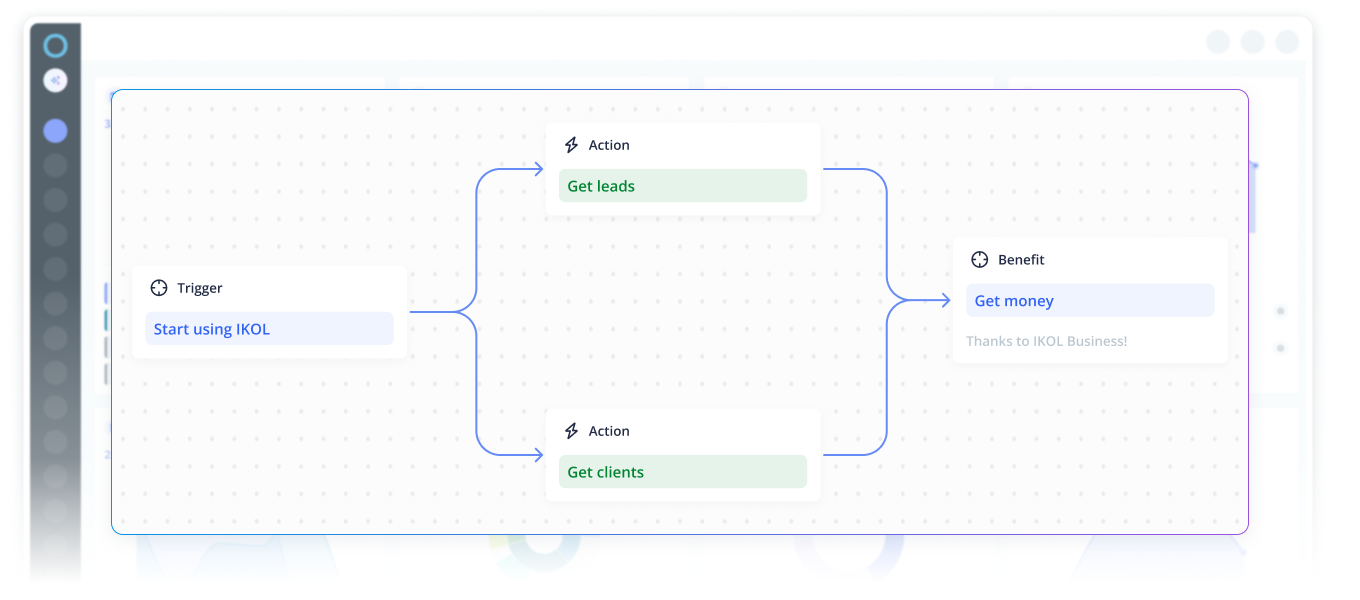
Flowchart illustrating a business process from trigger to benefit with steps to get leads and clients.
leads management

Stay organized to close more deals

Our lead system is easy to use and works great for both solo entrepreneurs and teams. You can manage tasks, update lead statuses, add notes, and organize everything with labels. It keeps all your client info in one place so nothing gets lost.

Status

Leads move through four statuses:

  • New when not yet contacted
  • In Progress when follow-up has started
  • Success when the sale is completed and ready to schedule
  • Failed when the sale was not closed but can help improve your process

You can also set reminders and update statuses manually based on interaction.

Labels
Notes
Task creation
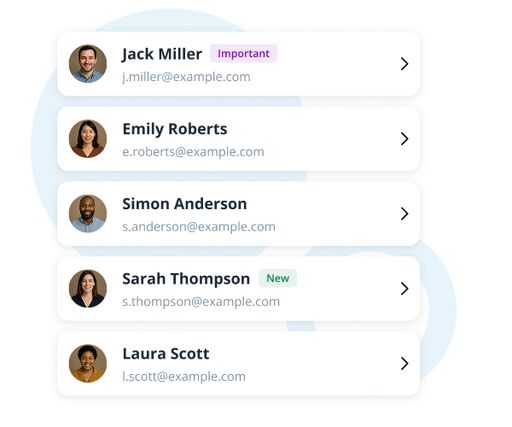
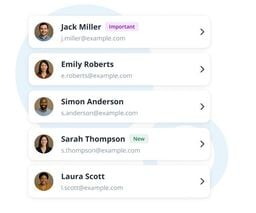
Contact list UI with profile avatars, names, emails, and status tags like Important and New, each row having a right arrow.
leads management

Stay organized to close more deals

Our lead system is easy to use and works great for both solo entrepreneurs and teams. You can manage tasks, update lead statuses, add notes, and organize everything with labels. It keeps all your client info in one place so nothing gets lost.

Status

Leads move through four statuses:

  • New when not yet contacted
  • In Progress when follow-up has started
  • Success when the sale is completed and ready to schedule
  • Failed when the sale was not closed but can help improve your process

You can also set reminders and update statuses manually based on interaction.

Contact list UI with profile avatars, names, emails, and status tags like Important and New, each row having a right arrow.
Labels

Labels help you organize and categorize your growing client list by specific criteria, allowing easy searching, viewing, and editing. With just a few clicks, you can manage labels, including name, description, and color, to optimize your workflow and stay in control of your leads.

Contact list UI with profile avatars, names, emails, and status tags like Important and New, each row having a right arrow.
Notes

Notes allows you to keep track of all your client interactions, providing a detailed conversation history. You can easily view, add, and edit notes to stay informed about each lead’s status, ensuring smooth follow-ups and personalized communication.

Contact list UI with profile avatars, names, emails, and status tags like Important and New, each row having a right arrow.
Task creation

Once the customer accepts your offer, the lead becomes a money-making opportunity, and you can convert it into a task by setting the date, location, assigned team member, and other details.

Contact list UI with profile avatars, names, emails, and status tags like Important and New, each row having a right arrow.
Lead Conversion

Conversations that pay off

Boost your sales by staying one step ahead with automatic follow-up reminders and organized lead management. The system helps you track every potential client, respond faster, and create personalized offers with ease. With all interactions logged in one place, you can see the full history of each lead and approach each case accordingly.
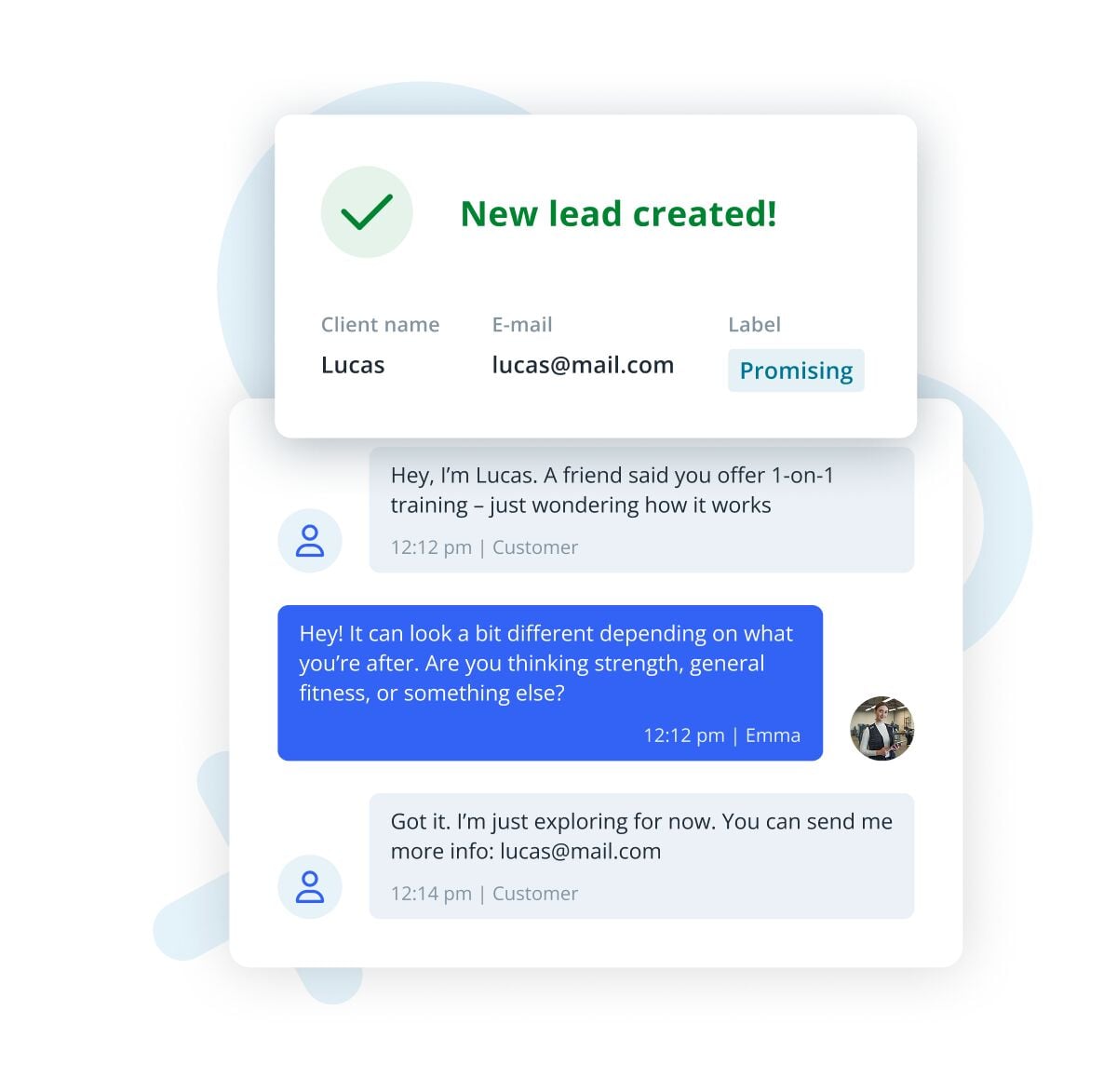
UI mockup showing a CRM notification and chat. A card says 'New lead created!' with client name Lucas, email lucas@mail.com, and label Promising. Below, a chat thread shows Lucas asking about 1‑on‑1 training, a reply from Emma asking about goals, and
automatic scenarios

Save time with automation

Turn conversations into clients with powerful automation tools. Whether it’s a live chat or AI assistant, when a visitor shares contact info, the system instantly creates a lead—so no opportunity slips through.

Setting scenario

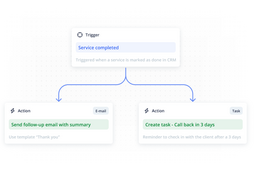
Set up step-by-step scenarios that automatically send targeted emails or SMS messages. Group leads by labels, schedule follow-ups, and build long-term relationships—without lifting a finger.

Message templates
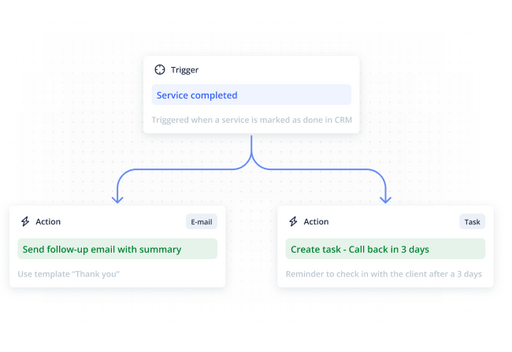
Workflow diagram showing a trigger and two automated actions in a CRM system.
automatic scenarios

Save time with automation

Turn conversations into clients with powerful automation tools. Whether it’s a live chat or AI assistant, when a visitor shares contact info, the system instantly creates a lead—so no opportunity slips through.

Setting scenario

Set up step-by-step scenarios that automatically send targeted emails or SMS messages. Group leads by labels, schedule follow-ups, and build long-term relationships—without lifting a finger.

Workflow diagram showing a trigger and two automated actions in a CRM system.
Message templates

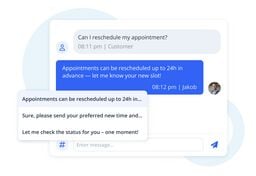
Send personalized offers fast using ready-made templates that auto-fill with client details. No more writing the same messages over and over.

Chat interface showing a customer asking to reschedule an appointment and an agent replying with preset quick responses.
Customer Retention

Keep customers coming back

Build customer loyalty with personalized communication and timely follow-ups. Our lead system tracks every interaction, ensuring clients feel valued and understood. By consistently meeting their needs and staying engaged, you can turn one-time buyers into loyal, long-term customers.

Use insights from past interactions to tailor offers, promotions, and updates that resonate with each customer. Happy, engaged clients are more likely to refer others, helping your business grow organically over time.
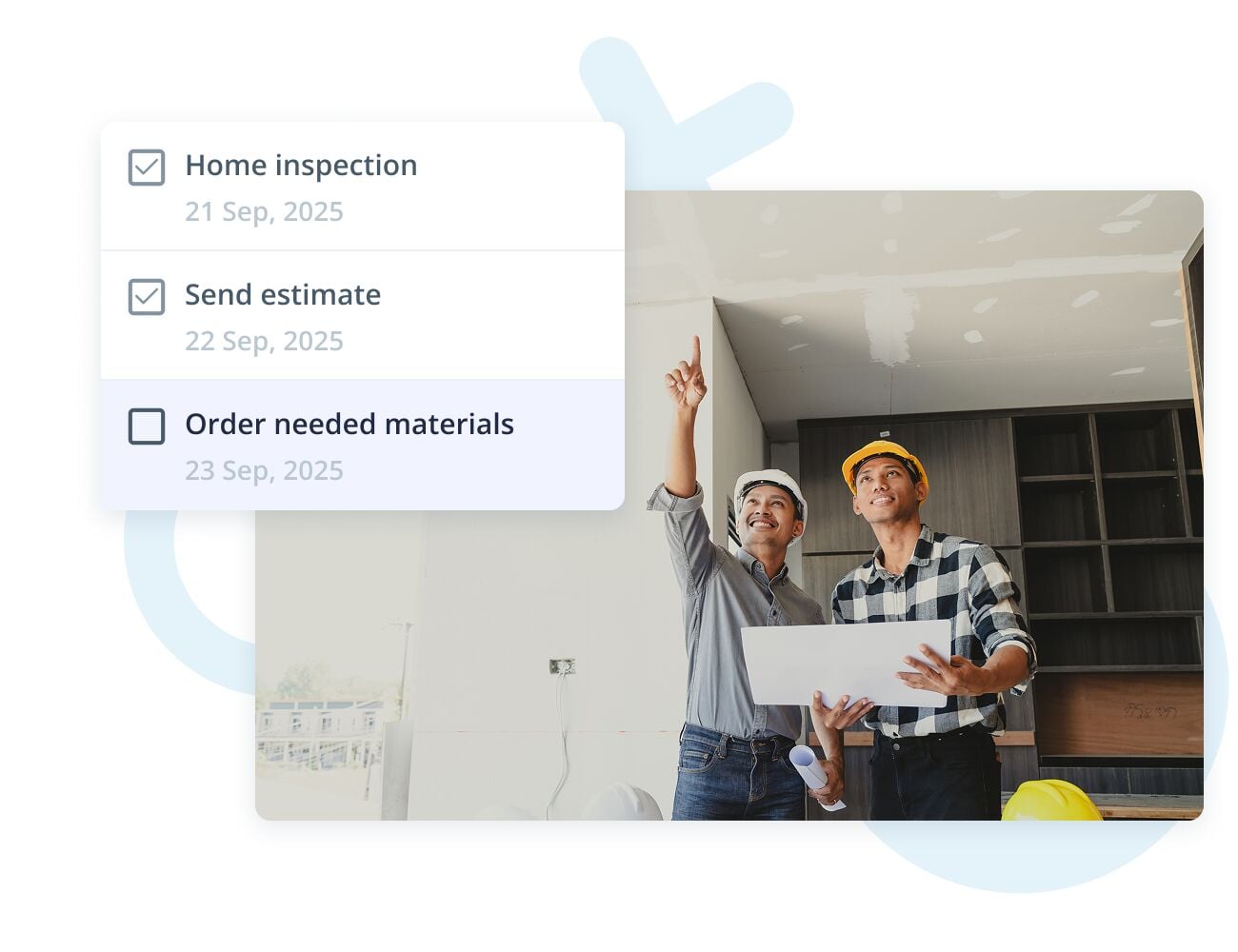
Two construction professionals reviewing a ceiling in an unfinished room, with an overlaid task checklist showing dates for a home inspection, estimate, and ordering materials.
Client Reports

See the bigger picture

Make smarter business decisions with full access to client history and detailed reports. Easily track lead activity, time spent on tasks, and client interactions to understand what drives results, improve your workflow, and plan your next steps with clarity.

Visualize trends and performance over time to spot opportunities and address challenges. Use reports to identify which strategies are working and make informed decisions to grow your business.
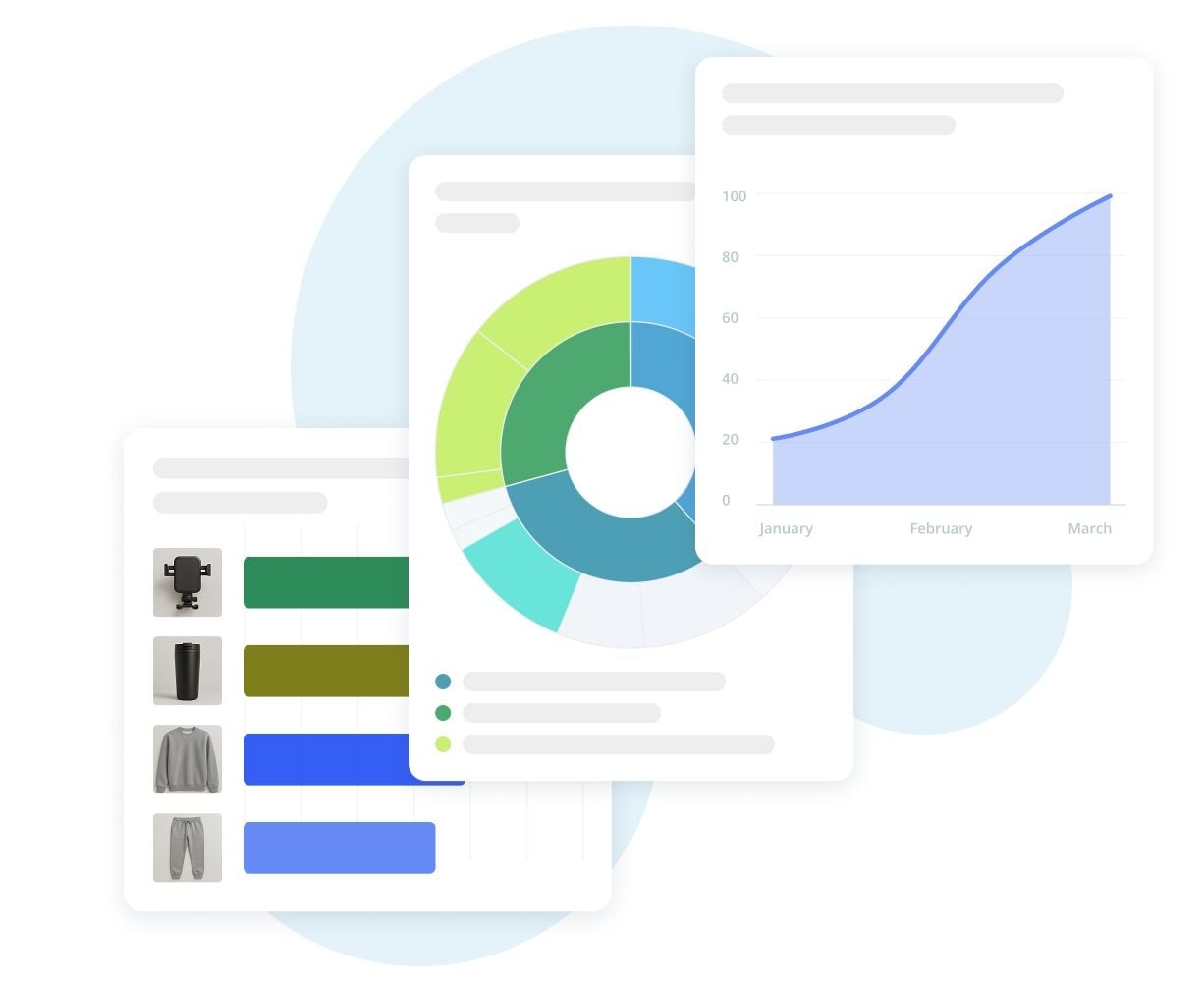
Stylized dashboard with overlapping data charts and profile list
faq

Frequently Asked Questions

How can I create leads?

Leads can be created manually by entering contact info, automatically through forms or chat, or semi-automatically by selecting contact details from a conversation.

How do I convert a chat into a lead?
Can I track the progress of my leads?
What is the label system, and how can I use it to manage leads?
How do I automate messages and follow-ups with my leads?

Large blue text reading 'FAQ' on a light, abstract background with soft shapes and minimal icons.
faq

Frequently Asked Questions

How can I create leads?

Leads can be created manually by entering contact info, automatically through forms or chat, or semi-automatically by selecting contact details from a conversation.

Large blue text reading 'FAQ' on a light, abstract background with soft shapes and minimal icons.
How do I convert a chat into a lead?

Simply capture the contact info shared in the chat, like email or phone number, and create a lead from it to follow up with offers.

Large blue letters spelling FAQ on a light abstract background.
Can I track the progress of my leads?

Yes, leads are tracked by status such as "New," "In Progress," "Success," and "Failed," making it easy to see where each lead is in the process.

Minimalist illustration with large blue letters spelling 'FAQ' against a light abstract background with soft shapes and subtle decorative icons.
What is the label system, and how can I use it to manage leads?

The label system allows you to categorize and organize your leads based on specific criteria (e.g., interest, location, or status). You can assign labels to leads to easily filter, search, and manage them for better follow-up and organization.

Large blue letters spelling FAQ with soft abstract shapes and icons in the background.
How do I automate messages and follow-ups with my leads?

You can set up automated messaging scenarios in IKOL, where you define specific messages to be sent at different stages. You can schedule these messages to be sent via email or SMS, ensuring consistent follow-ups without manual effort.

Minimalist illustration with large blue letters spelling FAQ against a light abstract background.

Try out lead management software!

  • No credit card required